How to put a photo on your Mac desktop
-
Add an image
Press ⌘⌥I to open an image, send one from Photos, Finder, or Safari with the Share menu, or capture part of your screen as an image note.
-
Give it a style
Right-click and choose a look from the Style menu: Polaroid, Taped, Pinned, Frame, Gallery, Vintage, Black & White, or Normal.
-
Place it
Drag it anywhere on the desktop and rotate it with ⌘⌥← / →, or hold ⌥ and scroll to rotate freely.
-
Keep it in view
Press ⌘⌥F to float it above your other windows, or lay out several images as a Photo Wall with ⌘⌥P.



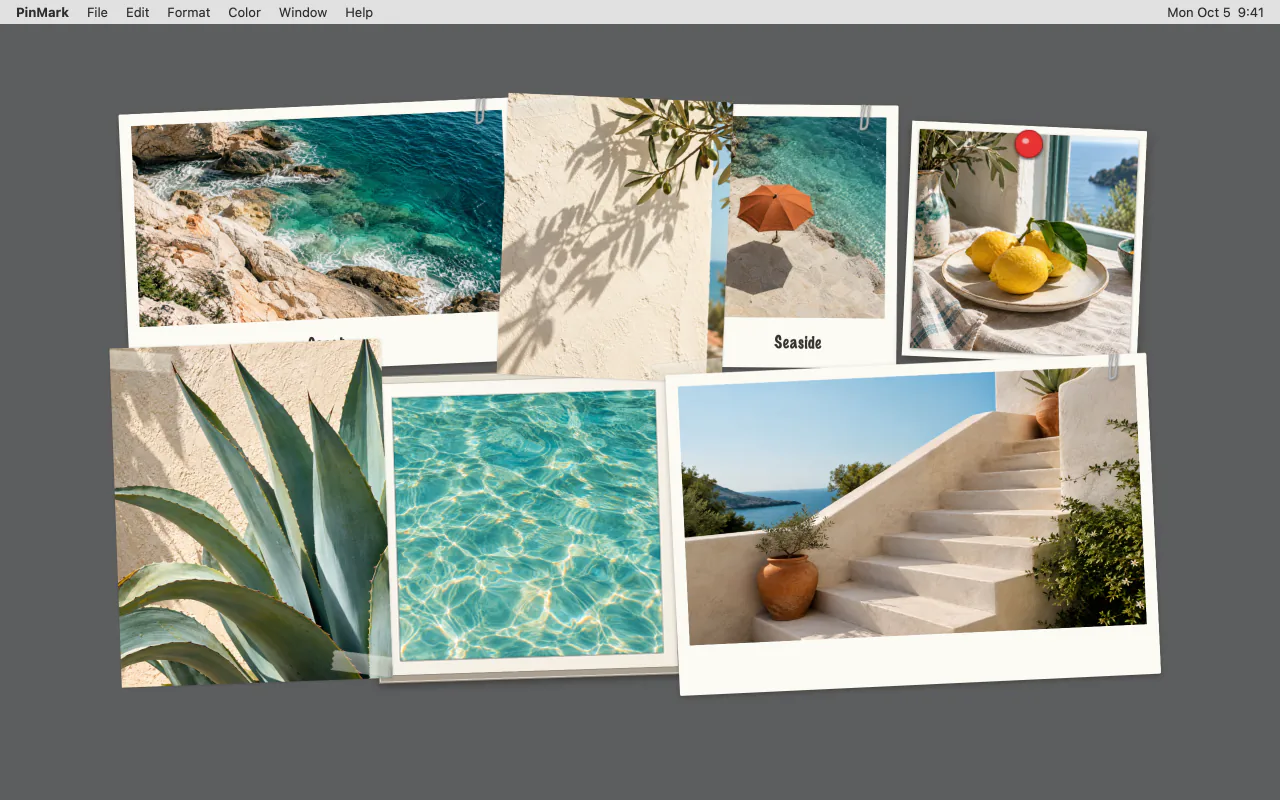
Eight styles that look like real prints.
Each image can wear a finished look — Polaroid, Taped, Pinned, Frame, Gallery, Vintage, Black & White, or plain Normal. There are no sliders to fiddle with: pick a style and the photo sits on your desktop like a print on a corkboard.
Double-click the bottom border of a Polaroid to write a caption; it stays with the photo when you switch styles. The free plan includes Normal, Polaroid, and Taped.
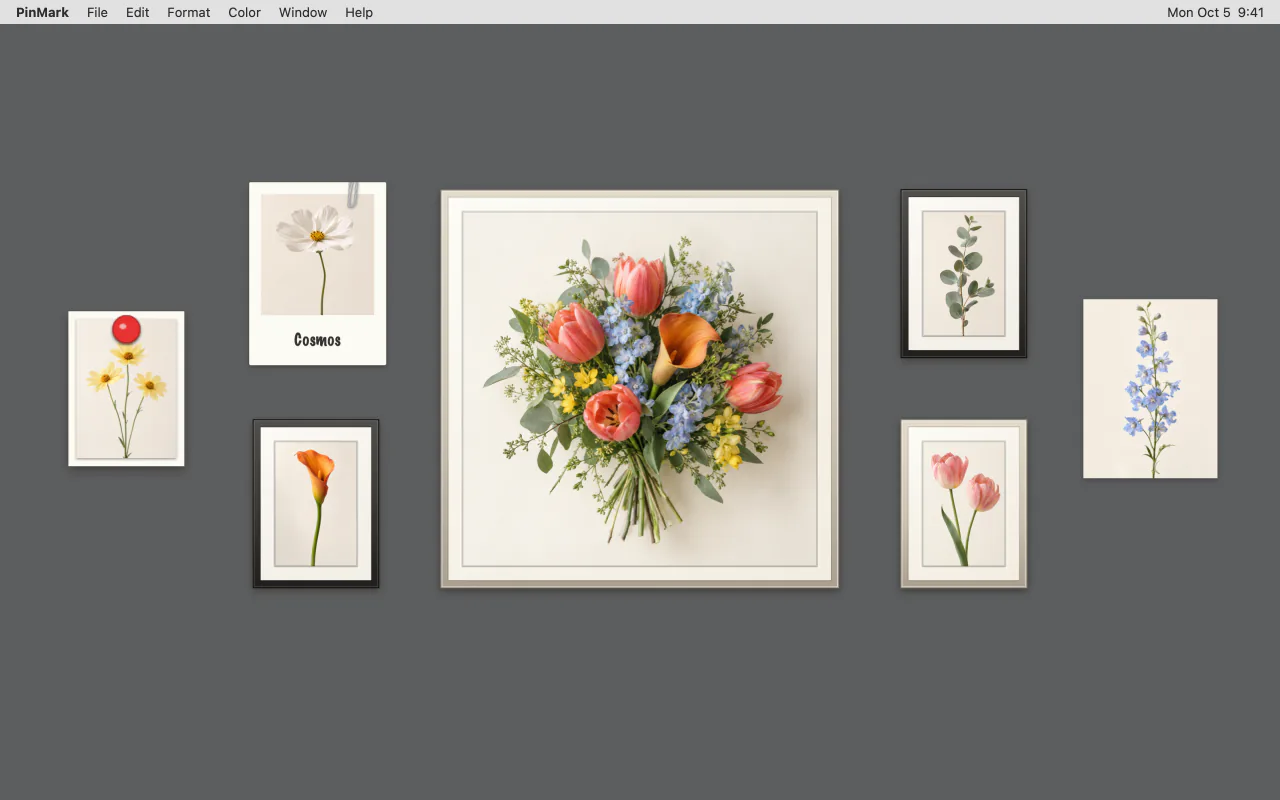
Turn a pile of images into a photo wall.
Choose Window › Photo Wall or press ⌘⌥P to lay out your image notes as Gallery, Grid, Masonry, Album Rows, Focal Center, Mirrored, Fan, or Collage. Text notes stay where they are.
Changed your mind? Restore Previous Layout puts everything back, even after you relaunch the app.
Keep a reference image on top while you work.
Press ⌘⌥F and an image note floats above your other app windows — handy for a mood board, a design spec, or a map you keep glancing at.
With Ghost Mode (⌘G, Pro), the image turns semi-transparent and clicks pass straight through it, so you can trace a layout or line up pixels in the app underneath. Hold Fn to move it.
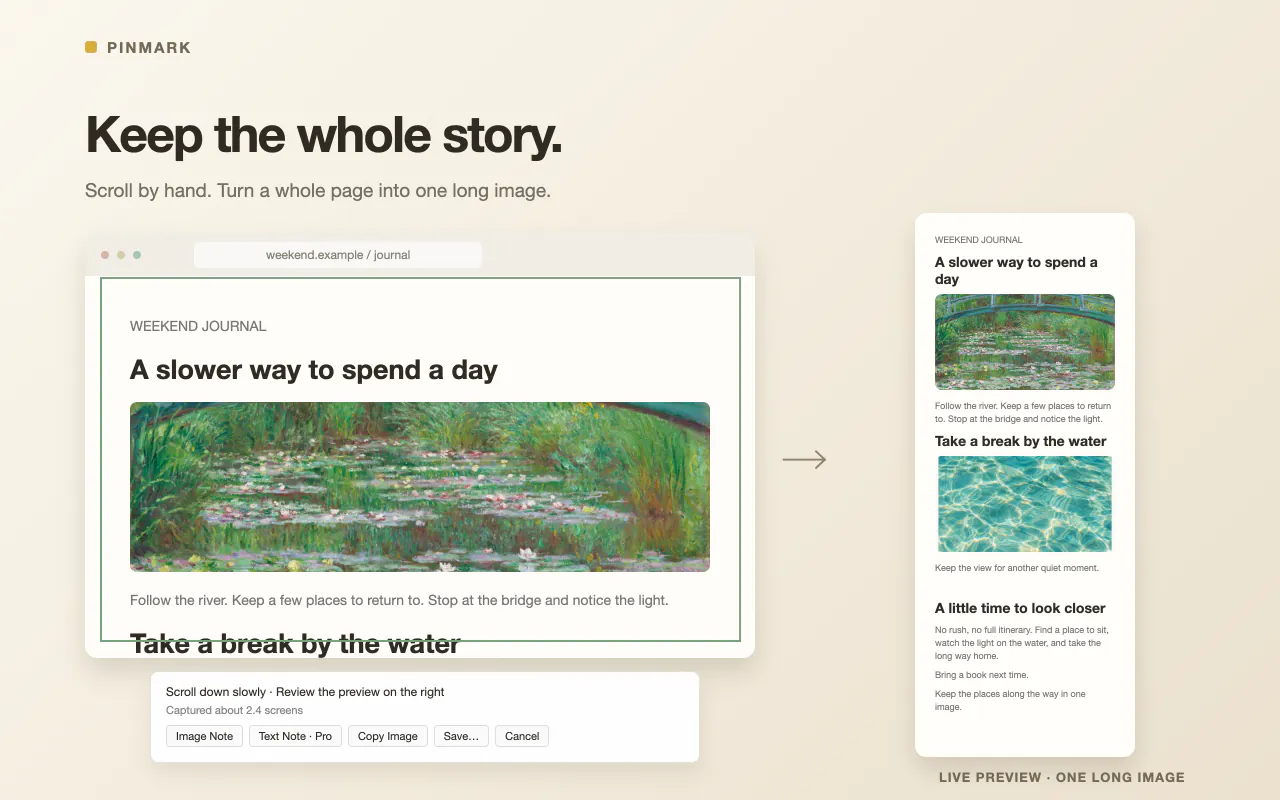
Pin screenshots — even whole pages.
Capture part of the screen and keep it as an image note instead of hunting for the file later. Scrolling capture stitches a long page into one image, which opens in a reading mode that scrolls inside the note.
Need the words, not the picture? With Pro, press ⇧⌘C to copy the text in any image note.
Other ways to show a photo on a Mac desktop
macOS has a few built-in options. Each covers part of the job:
| Wallpaper | Photos widget | Stickies | PinMark Sticky | |
|---|---|---|---|---|
| Place any image anywhere | One image fills the screen | Fixed widget sizes | Pasted inside a note window | Yes |
| Stays visible above app windows | No | No — widgets sit behind windows | Yes (Float on Top) | Yes (⌘⌥F) |
| Frames and print styles | No | No | No | 8 styles |
| Free rotation | No | No | No | Yes |
| Arrange many photos at once | No | No | No | Photo Wall, 8 layouts |
| Click-through overlay | No | No | No | Ghost Mode (Pro) |
Desktop widgets need macOS 14 Sonoma or later. PinMark Sticky runs on macOS 13 Ventura or later.